

The most popular and easiest way to effectively use AI agents and large language models is with markdown files called skills. Skills are a packaged way of telling a large language model what to do. Instead of repeatedly entering the same commands into the LLM, you can call a specific skill and use the LLM according to your needs. Skills are a feature developed by Anthropic and have become a common feature over time. If you're wondering what Claude skills are and how to build them, we've got you covered!
TL; DR
Skills are reusable prompt packages, popularized by Anthropic for Claud, that let you instruct an LLM how to complete specific tasks without rebuilding agents every time. They can be triggered automatically or called manually in conversation, and work across teams and projects (e.g., report analysis, email drafting, code review). While Claude offers native skill building, it can be token-heavy and costly at scale. TextCortex provides an alternative, letting you create, import, and run skills across multiple LLMs (including GPT-5.5 and DeepSeek R1) so you can match model complexity to the task and control costs. Building skills in TextCortex is straightforward: define a name, description, and instructions, then deploy them via chat or AI agents.
What are Claude Skills?
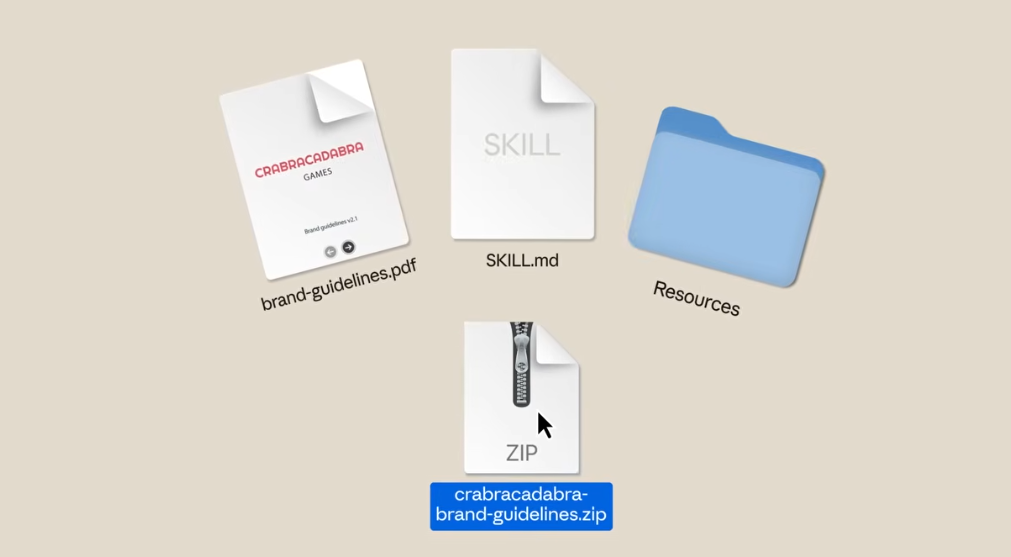
In its simplest terms, Claude Skills are prompt group folders that contain one or more prompts simultaneously and can be called upon when needed. Skills tell the LLM how to complete tasks, how to process them, how to act, and customize your LLM output generation process. With Claude Skills, you can avoid the hassle of building AI agents for every task and project, and instead build skills for different tasks, allowing you to use the same skills modularly in different areas. For example, a skill you build for report analysis can be used by both your growth team and your customer support team. The best part about Skills is their modular structure, allowing them to work simultaneously with both AI agents and other skills.
How does Claude Skills Work?
If you have pre-installed skills in Claude, your prompt will be analyzed by the LLM, and the skill you need will be used automatically. If you use skills manually, simply call them in your conversation. For example, if you want to generate a weekly status report, you can call a skill customized for this task in your report generation process.
How can You Use Skills to Enhance Productivity?
If you want to enhance your enterprise productivity by incorporating the skill feature into your organization, you need to complete a few important steps. First, you should explore how your departments can effectively integrate the skill feature into their daily workloads. For example, a skill that allows your customer support team to list emails or quickly answer generic questions, while simultaneously scanning your knowledge base and adding information, will save them time. The key point here is not to use skills for tasks that can be done quickly manually. The next step is to offer the skill feature to your departments and employees, giving them time to use it. As your employees begin to lighten their workloads with the skill feature, productivity and time savings will increase proportionally.
How to Build a Claude Skill?
If you want to build skills for your enterprise and specific tasks, don't worry, the process is easier than you think. To build skills, simply talk to the Claude AI chatbot about skill building. After laying the foundation for your skill with Claude AI, you can customize it to your needs. For example, after building a skill that will scan and list articles on a specific topic for you, you can give it the websites it should prioritize. Then, you can have it generate short summaries of each article and present them to you as a PDF or DOCX document. You can apply the same to status reports or project tracks for your enterprise.
How to Integrate Skills into Your Business?
While the Skills feature is an effective solution, it encourages your enterprise to use Claude AI. By purchasing the Claude AI enterprise plan, you can create accounts for your employees and grant each employee access to the skills feature. The downside is that using skills through Claude AI costs a lot of tokens. Even with the Pro plan, it's difficult to use Claude AI effectively for every task. A single incorrect output can cost you thousands of tokens and negatively impact your skills usage process. Although the Skills feature is effective, you don't have to use it only through Claude. You can integrate the Skills feature into your business through TextCortex, a customized AI platform for your enterprise workflow. So how?
TextCortex AI: Integrate Skills into Your Workflow
TextCortex allows users to utilize the skills feature with various large language models. Unlike Claude AI, TextCortex allows you to integrate the skills feature with GPT-5.5, DeepSeek R1, and a wide range of large language models, rather than being limited to Claude models. This allows you to select LLMs based on the complexity requirements of your tasks, preventing skills from using extra tokens and saving costs.
With TextCortex, you can use existing skills for Claude or OpenClaw, or build new ones from scratch.
How to Create Skills via TextCortex?
Building skills with TextCortex is a simple and fast process. All you have to do is go to the TextCortex web application and click on the "Skills" tab in the left menu. Then, you can go to the new skill creation screen by clicking the little "+" sign. On this screen, you can either create skills from scratch or upload your existing skills to TextCortex.
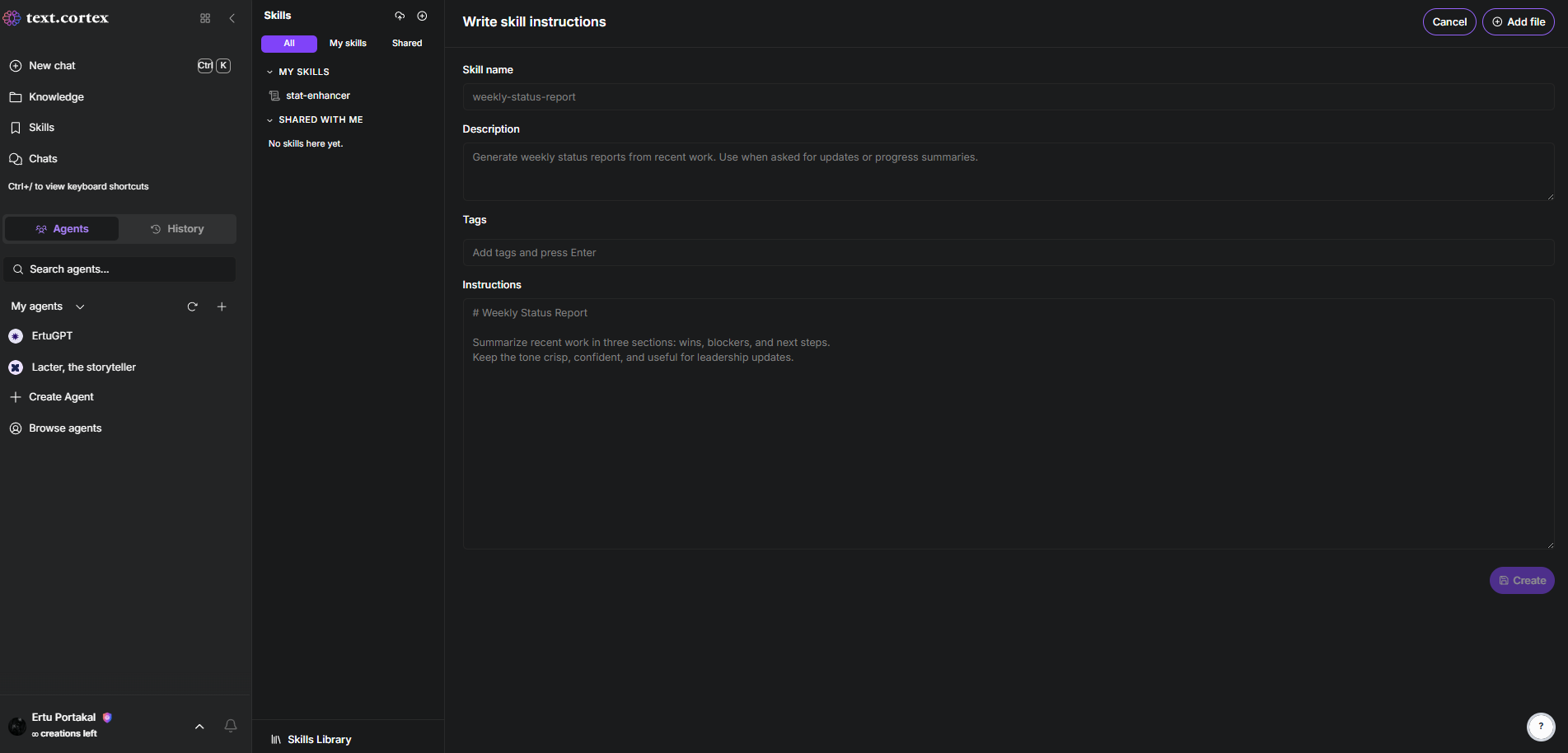
On this screen, after adding a name, description, and tag for your skill, simply fill in the instruction section where you need to write what the skill does and how it works.
TextCortex Skill Examples
If you want to create skills with TextCortex, you can use the following examples as a guide.
TextCortex Skill Example #1
Skill name: friendly-email-drafter
Description: Draft clear, warm emails for internal and external communication.
Instructions:
# Email Drafter
Write emails that are concise, friendly, and action-oriented.
- Start with a brief, warm greeting.
- State the purpose in the first 1-2 sentences.
- Use bullet points for multiple asks or details.
- End with a clear call to action and a polite sign-off.
- Keep paragraphs short (2-3 lines max).
TextCortex Skill Example #2
Skill name: meeting-notes-to-actions
Description: Convert raw meeting notes into structured summaries with owners and deadlines.
Instructions:# Meeting Notes Summarizer
Turn meeting notes into:
1. Summary: 2-3 sentence overview of what was discussed.
2. Decisions made: list any finalized choices.
3. Action items: table format with columns: Task | Owner | Due Date | Priority.
4. Open questions: list anything unresolved.
Infer deadlines only if explicitly mentioned; otherwise leave "TBD."
TextCortex Skill Example #3
Skill name: code-review-helper
Description: Review code snippets for bugs, style, and readability improvements.
Instructions:# Code Review
Analyze the provided code and output:
1. Quick verdict: Is it safe to merge? (Yes / Needs fixes / Critical issues)
2. Bugs / logic errors: describe the issue and suggest a fix.
3. Style & readability: naming, formatting, comments.
4. Performance: note any obvious inefficiencies.
5. Security: flag any obvious vulnerabilities (injections, leaks, unsafe inputs).
Be specific with line references where possible. Keep feedback constructive.
TextCortex Skill Example #4
Skill name: project-status-table
Description: Generate a clean project status table from a list of tasks or bullet points.
Instructions:# Project Status Table
Convert any project update into a markdown table with these exact columns:
| Task | Owner | Status | Due | Blockers / Notes |
Rules:
- Status must be one of: Not Started, In Progress, Blocked, Complete
- Keep Task text to 6 words max.
- If no blockers, write "None" instead of leaving blank.
- Sort by Status (Blocked first, then In Progress, then Not Started, then Complete), then by Due date.
- After the table, add a 2-line summary: total tasks, how many blocked.
Output only the table and summary. No extra commentary.
TextCortex Skill Example #5
Skill name: formal-report-docx
Description: Generate a structured report formatted for direct copy-paste into Microsoft Word.
Instructions: # Formal Report (DOCX-Ready)
Produce a professional report using this exact heading hierarchy so it imports cleanly into Word:
# 1. Executive Summary
2–3 sentences. No fluff.
# 2. Background
What triggered this report. Bullet points allowed.
# 3. Findings / Analysis
Use subheadings:
## 3.1 [Sub-topic]
## 3.2 [Sub-topic]
Include a markdown table if data supports it.
# 4. Recommendations
Numbered list (1., 2., 3.). Each item starts with a bold action, then 1 sentence of explanation.
# 5. Next Steps
Table format:
| Step | Owner | Timeline |
Formatting rules for Word copy-paste:
- Use standard markdown headings (#, ##, ###) so they convert to Word styles.
- Use **bold** for key terms, *italics* for emphasis only.
- Avoid emojis; use simple text markers instead.
- Tables must have header separators (| --- | --- |) so Word recognizes them on paste.
- Keep paragraphs under 4 lines for readability.
- End with a "Prepared by" line.
Frequently Asked Questions
What are skills in Claude AI?
The skills in Claude AI are prompt groups that give LLMs instructions and enable them to take action. Claude AI skills also work in TextCortex and OpenClaw.
How does Claude know what skill to use?
The LLM analyzes the given prompt and selects and uses the appropriate skill from the pre-installed skill library.
Can I use Claude skills for free?
If you have a Claude AI free membership account, you can use the skill feature in a limited way. However, due to heavy Claude AI usage and server congestion, you will usually reach your free usage limit after using only 1-2 skills.
.png)
.png)
.png)